Company settings
Your company details appear on invoices, emails to guests and the booking widget. Fill them in before anything else.
-
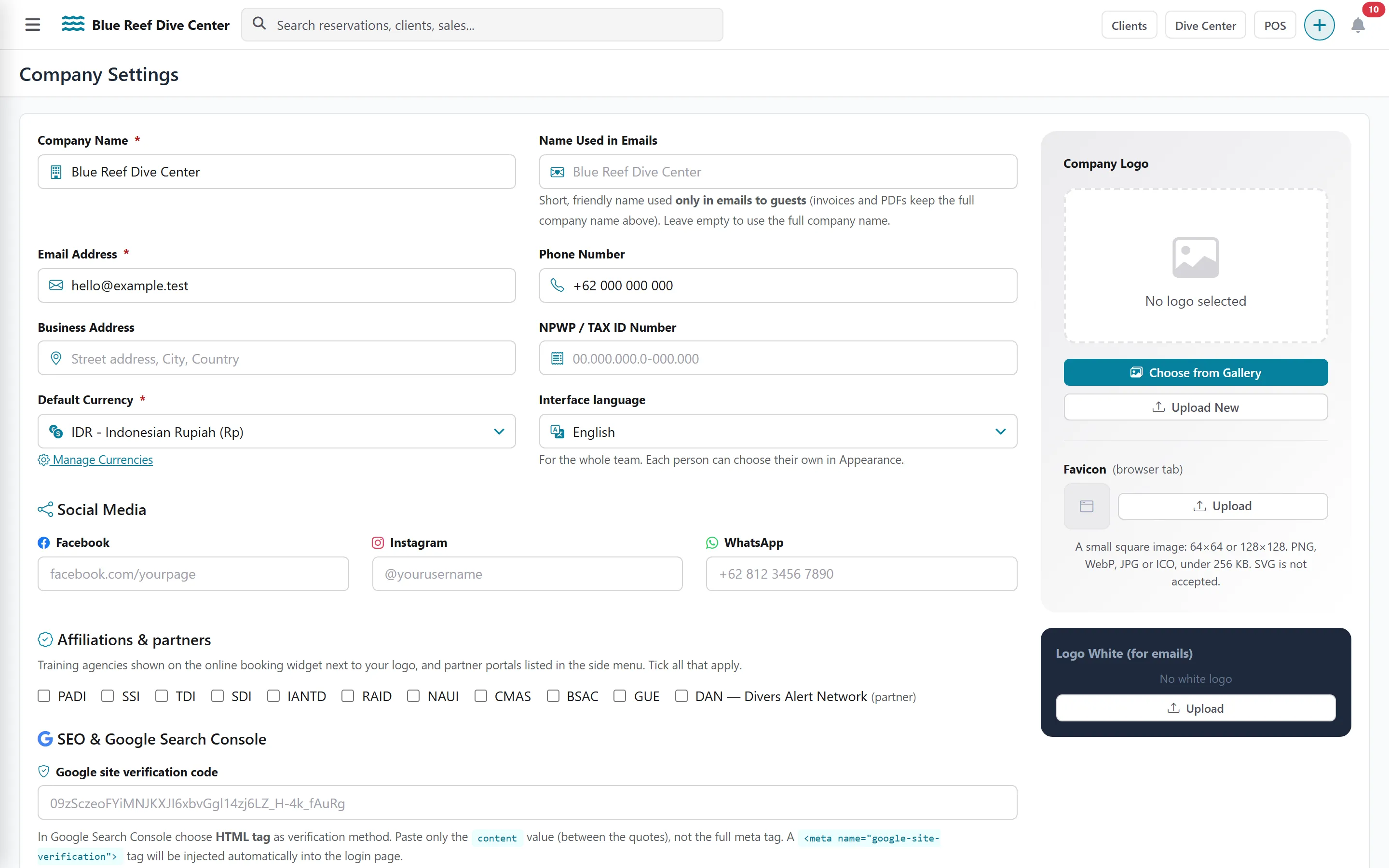
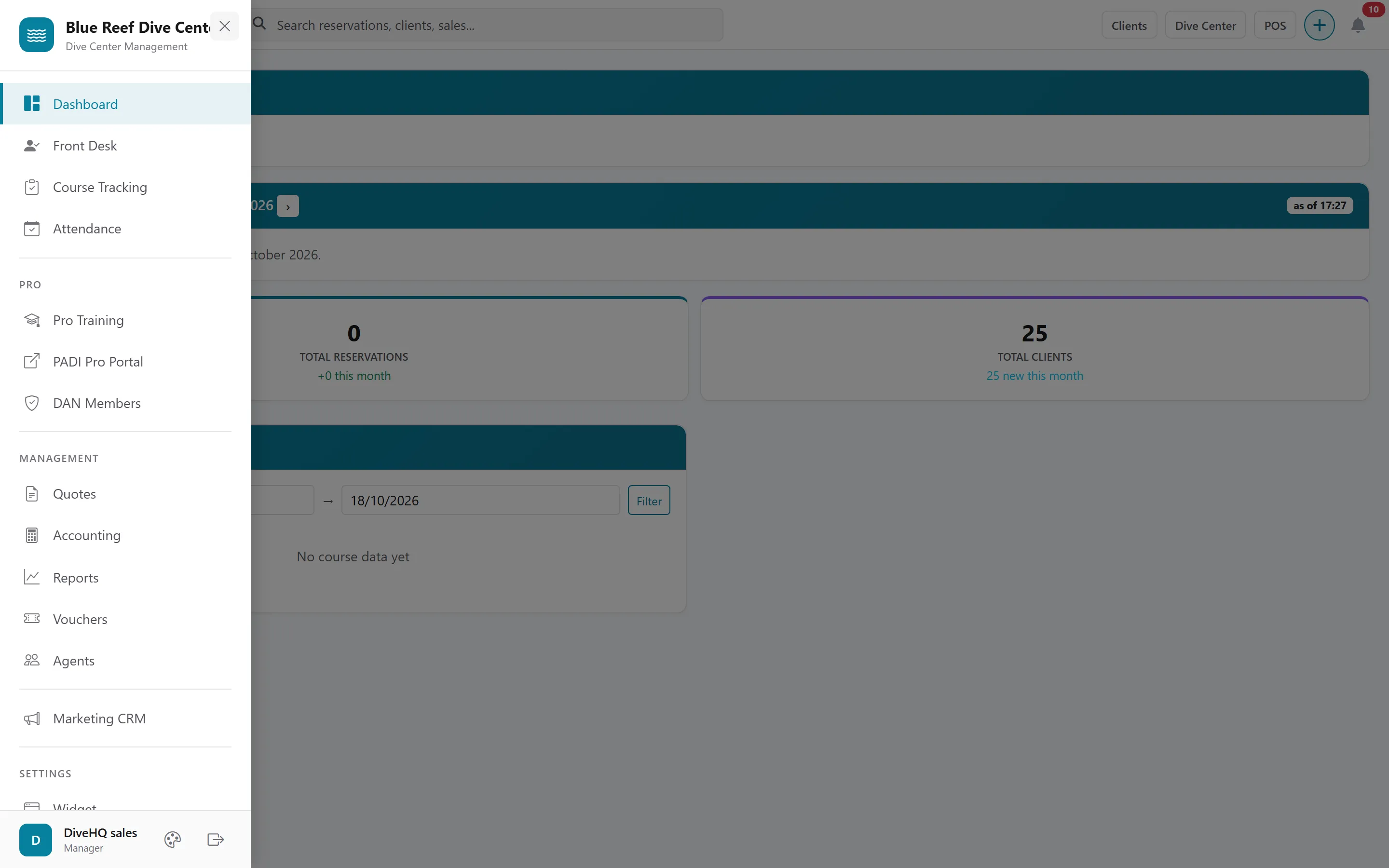
In the left menu, under Settings, open Company. The Company tab opens first.
-
Fill in the identity block: Company Name, Email Address, Phone Number, Business Address and NPWP / TAX ID Number. Name Used in Emails is optional: a short, friendly name used only in emails to guests. Leave it empty to use the full company name.
-
Choose your Default Currency. It is pre-selected every time you create an activity. If your currency is missing, click Manage Currencies first.
-
Choose the Interface language for the whole team (English, Français, Bahasa Indonesia, Español or Deutsch). Each person can still pick their own language in Appearance, at the bottom of the left menu.
-
In the right column, add your Company Logo, a Logo White (for emails) and a Favicon (browser tab).
-
Optionally complete the other sections:
- Social Media (Facebook, Instagram, WhatsApp)
- Affiliations & partners: tick your training agencies (PADI, SSI, …). They are shown next to your logo on the booking widget and as portal links in the left menu.
- Website & after-payment pages: your website and the pages guests land on after a successful or failed payment (full
https://addresses). - Google Analytics 4 and Marketing Safe Zone (minimum gap between two marketing emails to the same guest).
-
Click Save Changes.