
1. System settings
The settings page holds everything that applies to your whole operation. Its tabs are General Settings, Modules, Notifications, Payment Methods, Payment Gateways, Invoice Template, Policies, Discounts, Integrations, Marketing and Dashboard Design. There is a single Save Settings button at the bottom of the page.
Company and region
Section titled “Company and region”-
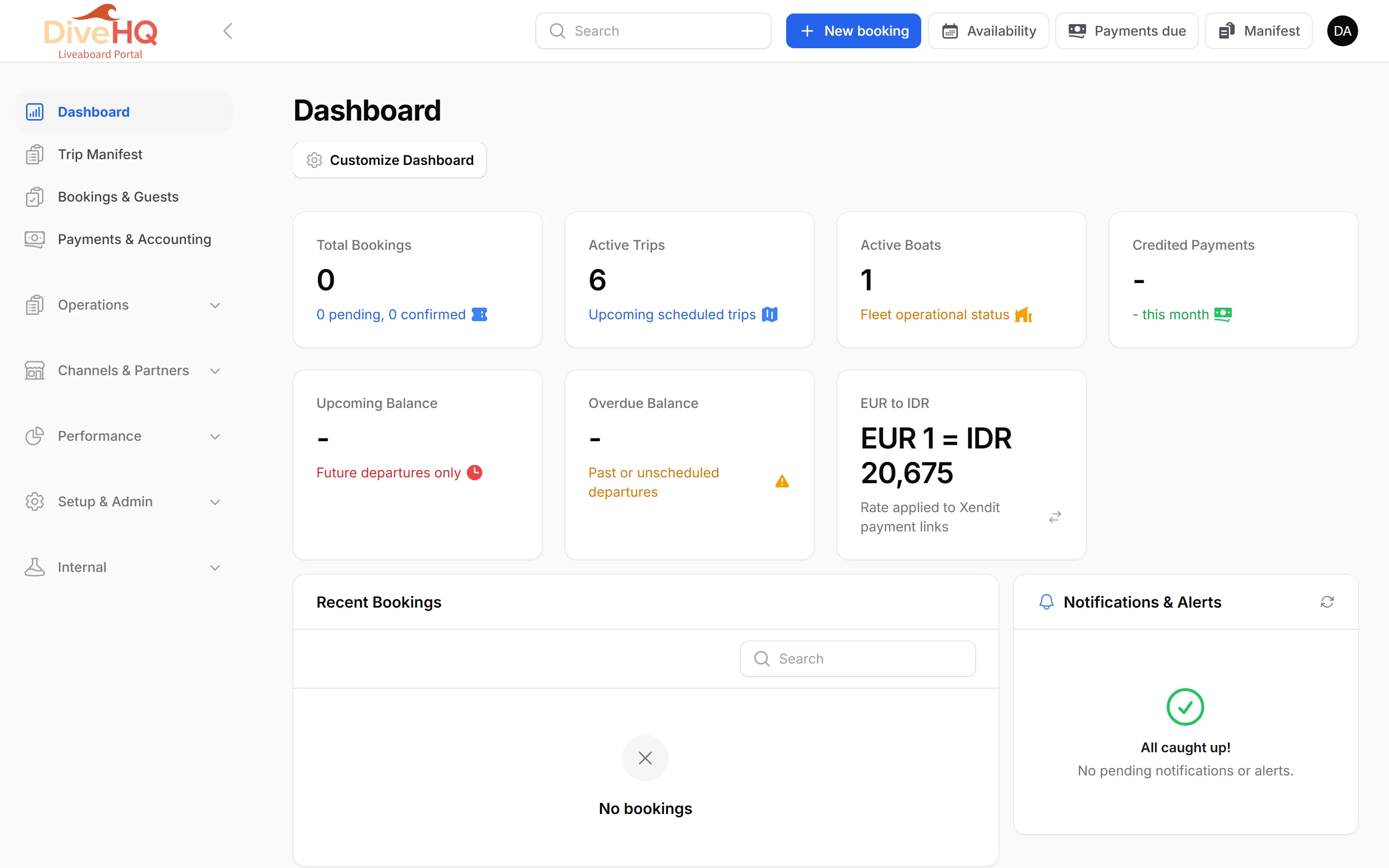
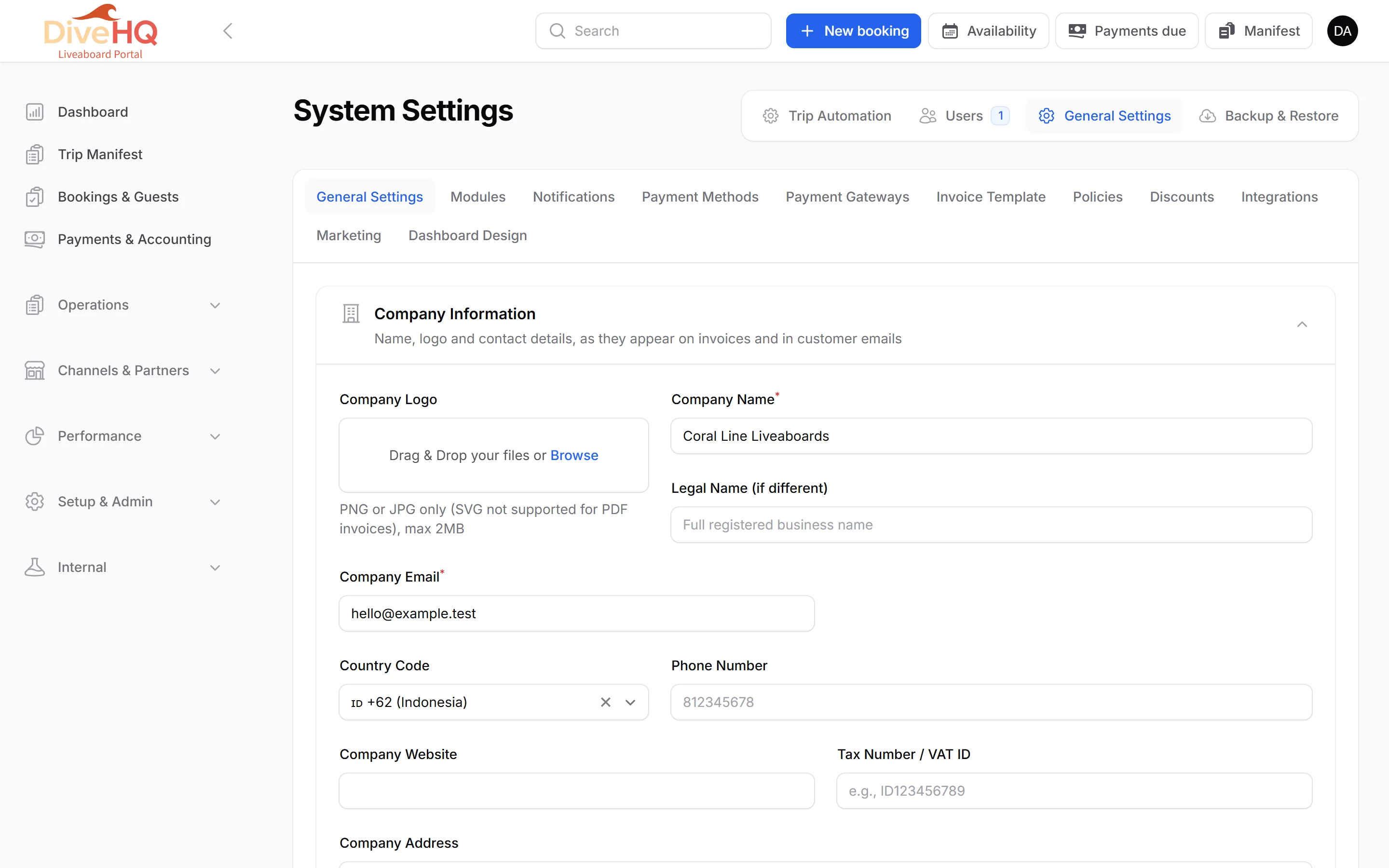
In the left menu, open Setup & Admin › System Admin › General Settings. The page is called System Settings.
-
In Company Information, upload your Company Logo (PNG or JPG, max 2 MB — SVG is not supported on PDF invoices), and fill in Company Name and Company Email (both required), your phone number, website, tax number and address.
-
Fill in the texts shown on your public trip pages under Before You Board: Meeting Point (a trip can override it), Boarding Time and What Boarding Includes. Leave a field blank to hide its line — never list something you do not provide.
-
In Region & Language, choose your Timezone and Country, the Admin Panel Language and the Widget Default Language.
-
In Unit & Currency, choose the Currency shown to guests, and your distance, weight and temperature units.
-
Click Save Settings.
Optional modules
Section titled “Optional modules”On the Modules tab, switch off what your operation does not use. A module that is off disappears from the menu and stops answering its own pages, exports and scheduled jobs. Nothing is deleted: switching it back on restores the screens with their data.
| Module | On by default |
|---|---|
| Bar & Point of Sale | No |
| Costs & P&L | Yes |
| E-Learning | Yes |
| Partner Feeds & Integrations (LiveaboardHub, ScubaDates, Google Merchant, partner API) | Yes |
| WhatsApp sending | No |
| Affiliate program | No |
| Waivers & Guest Documents | Yes |
Next: 2. Boats & cabin types