
Waivers
A waiver is a document a guest must sign before an activity: liability release, medical statement, photo release… DiveHQ sends it, collects the signature and keeps the signed PDF.
Create a waiver template
Section titled “Create a waiver template”-
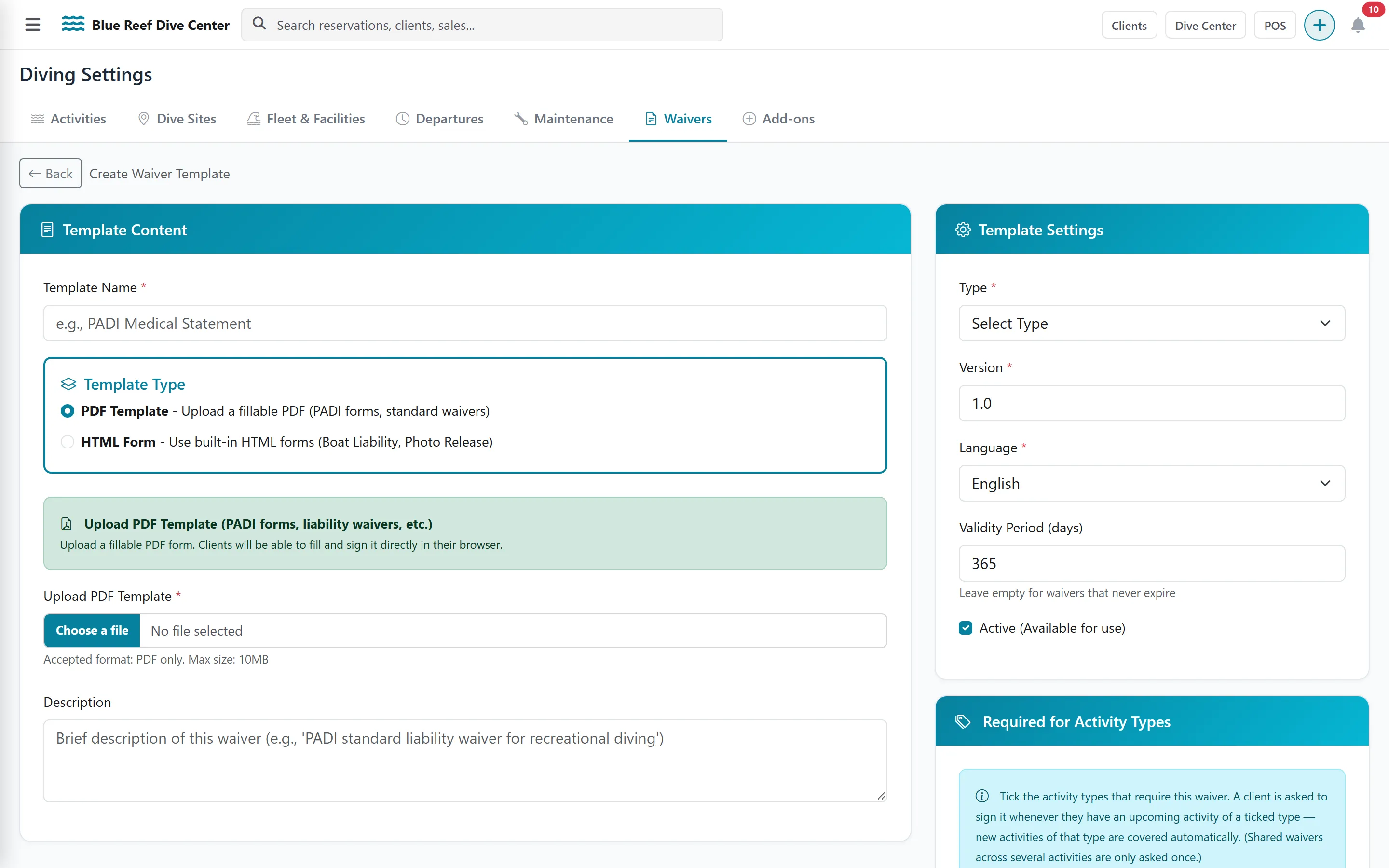
Open Settings › Diving, click the Waivers tab, then New Template.
-
Enter the Template Name (for example “Medical Statement”) and choose the Template Type:
- PDF Template: upload your own fillable PDF (PDF only, max 10 MB), for example your training agency’s forms;
- HTML Form: choose a ready-made form — Boat Liability Waiver, Photo/Video Release Form, Medical Statement Form or Certified Diver Waiver Pack — and optionally add your own legal text.
-
In Template Settings, choose the Type (Liability Waiver, Medical Statement, Photo Release, Custom), the Version, the Language and an optional Validity Period (days) — leave it empty for a waiver that never expires. Keep Active ticked.
-
Under Required for Activity Types, tick the activity types that need this waiver. A guest is asked to sign it whenever they have an upcoming activity of a ticked type.
-
Optionally add extra questions with Add Field, then Preview and Create Template.
How guests receive and sign their waivers
Section titled “How guests receive and sign their waivers”There are three ways, and you can mix them.
Through their pre-arrival form
Section titled “Through their pre-arrival form”Each guest has a personal pre-arrival form (the {profile_link} of your email templates). It lists the waivers they need for their activities, with a Sign now button. Sending the form is enough: the waivers come with it.
From the client’s page
Section titled “From the client’s page”-
Open the client and go to the Waivers tab (Waivers & Legal Documents).
-
Click Send waiver request. Tick the waivers to send — already signed ones are greyed out — or Select all unsigned.
-
Under Send via, choose Email, WhatsApp, Email + WhatsApp or Generate Links (to copy and send yourself). Set how many days the links stay valid (Expiration, 30 by default).
-
Send. The guest receives one link per waiver.
Sending an unsigned waiver again keeps the same link and extends it.
At the desk
Section titled “At the desk”On the client’s Waivers tab, Quick sign in office opens the signature page on your device: choose the waiver and hand the tablet to the guest. On a check-in day you can also use the Check-in QR of the Front Desk.
What the guest does
Section titled “What the guest does”The guest fills in their details (name, date of birth, contact, emergency contact), reads the document, signs with a finger or the mouse, ticks the agreement box and clicks Submit Waiver. DiveHQ saves the signed PDF and shows a thank-you page. Contact details they enter complete the client record when it was empty.
Follow who has signed
Section titled “Follow who has signed”- On each client’s Waivers tab: Signed with the date, Awaiting signature (with the link’s expiry), or Expired. Preview or download the PDF, or Reopen a link that has expired.
- Signed Waivers lists every signed waiver, filterable by type, with the PDF and a link to the client.
- The Front Desk shows, for each diver of the day, whether their waivers are signed.