
Emails & WhatsApp
Settings › Communication opens the Communication Center. Its tabs are Dashboard, Email Templates, WhatsApp Templates, Automation, Message Logs, PDF & Attachments, Lobby TV, Guide screen + and Settings.
Set it up in this order: connect a mailbox, then WhatsApp if you use it, then check your templates, then create your automations.
1. Connect the mailbox that sends your emails
Section titled “1. Connect the mailbox that sends your emails”Open the Settings tab (page Communication Settings). Each service has its own tab; a green check appears on a tab once the service is set up.
Microsoft 365 (recommended if your mailbox is on Outlook / Microsoft 365)
Section titled “Microsoft 365 (recommended if your mailbox is on Outlook / Microsoft 365)”-
Click Azure Portal and register an application. Paste the Redirect URI (for Azure AD) shown on the page (use the copy button).
-
Back in DiveHQ, fill in the Application (client) ID, Directory (tenant) ID, Client Secret Value (in Azure: Certificates & secrets › Client secrets › Value) and the From Email — a licensed mailbox of your Microsoft 365 account.
-
Click Connect Microsoft 365, sign in with that mailbox and accept the permissions DiveHQ asks for (sending mail on its behalf).
-
The card shows Connected to Microsoft 365. Click Test Connection, then send yourself a test with Send Test Email via Microsoft 365.
-
On the Brevo tab, fill in the API Key, the SMTP Username and SMTP Password from your Brevo account, and the From Email and From Name guests will see.
-
Click Save All Configuration at the bottom of the page.
-
In Test Email, enter a recipient, a subject and a message, then click Send Test Email via Brevo.
2. Connect WhatsApp (optional)
Section titled “2. Connect WhatsApp (optional)”WhatsApp messages go through the official Meta WhatsApp Business platform.
-
Open the WhatsApp tab and fill in the Access Token and Phone Number ID from your Meta Business account (the Business Account ID is optional).
-
In Webhook Configuration, copy the Webhook URL into Meta, and generate a Verify Token with the button next to it.
-
Click Save All Configuration, then send a test with Send Test WhatsApp.
3. Message templates
Section titled “3. Message templates”Email Templates and WhatsApp Templates list your messages by category (bookings, payments, reminders, courses, pro training, birthdays, marketing…). New Template, or Edit / Duplicate an existing one.
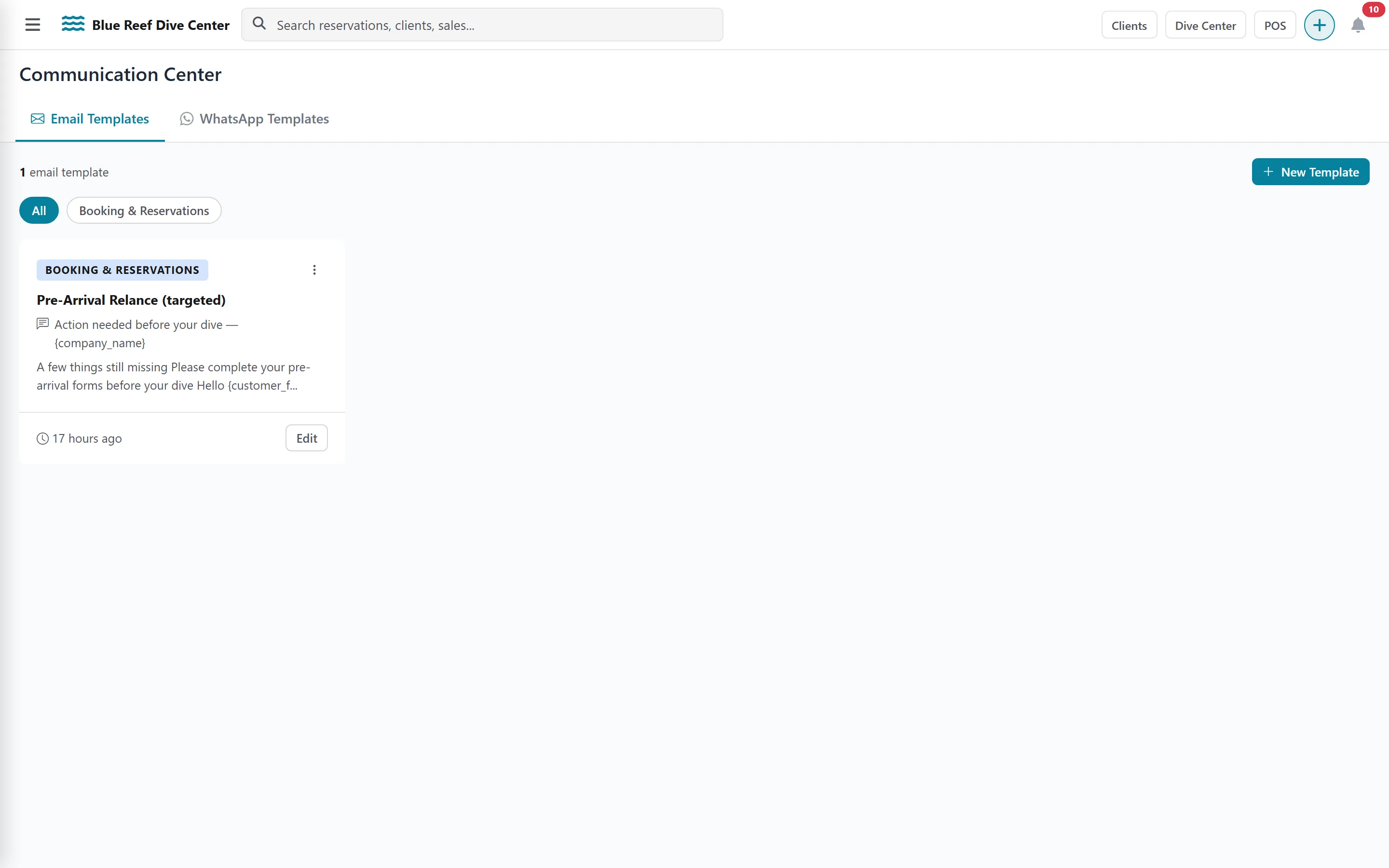
- Template Name, Category, Subject (email) and Content are required.
- Insert variables from the Available Variables panel —
{customer_name},{checkin_date}, payment amounts, links… They are replaced with the guest’s details when the message is sent. {profile_link}is the guest’s personal pre-arrival form, where they complete their profile and sign their waivers (see Waivers).- Tick Active (can be used for sending), then Preview before saving.
4. Automatic messages (Automation)
Section titled “4. Automatic messages (Automation)”-
Open the Automation tab and click New Rule.
-
Give it a Rule Name, then choose the Trigger Type:
- instant: When reservation is confirmed, When reservation is cancelled, When full payment is received, When diving sale is confirmed / cancelled, When a certification is obtained;
- scheduled: Days before check-in (set Days Before Check-in), Days before / after client birthday, Days after certification obtained.
-
Choose the Channel (Email only, WhatsApp only, Email & WhatsApp) and the template for each channel.
-
Choose who receives it under Send To (Primary Customer, Lead Guest, All Guests, Travel Agent). Tick CC Travel Agent to copy the agency.
-
Keep Active ticked and click Create Rule.
Instant rules send at once; scheduled rules are checked automatically through the day.
5. Check what was sent
Section titled “5. Check what was sent”Message Logs lists every email and WhatsApp with its status (Sent, Delivered, Failed, Pending), filterable by channel and status, with a link to the booking. The Dashboard tab sums up the last 30 days and lists messages that need attention.