
Taxes, mandatory fees & deposits
-
Open Settings › Company and click the Taxes tab, then Add Tax.
-
Fill in the form:
- Tax Name.
- Calculation Type: Percentage (%) with a Tax Rate (%). If you also use Dive Resort with DiveHQ, Fixed Amount is offered too, with a Tax Amount and a Frequency (per night, per guest per night, per stay…). A per-diver fee for diving days is set in Government Fees below.
- Tax Inclusive: ticked if the tax is already included in your prices; unticked to add it on top.
- Cascade Tax: ticked if taxes calculated after this one should include it.
- Applies To: Activities, Equipment, Services, Food & Beverage, Retail (and Rooms if you also run a hotel).
- Calculation Order: lower numbers are calculated first.
-
Save. A tax already used on bookings cannot be deleted — untick Active instead.
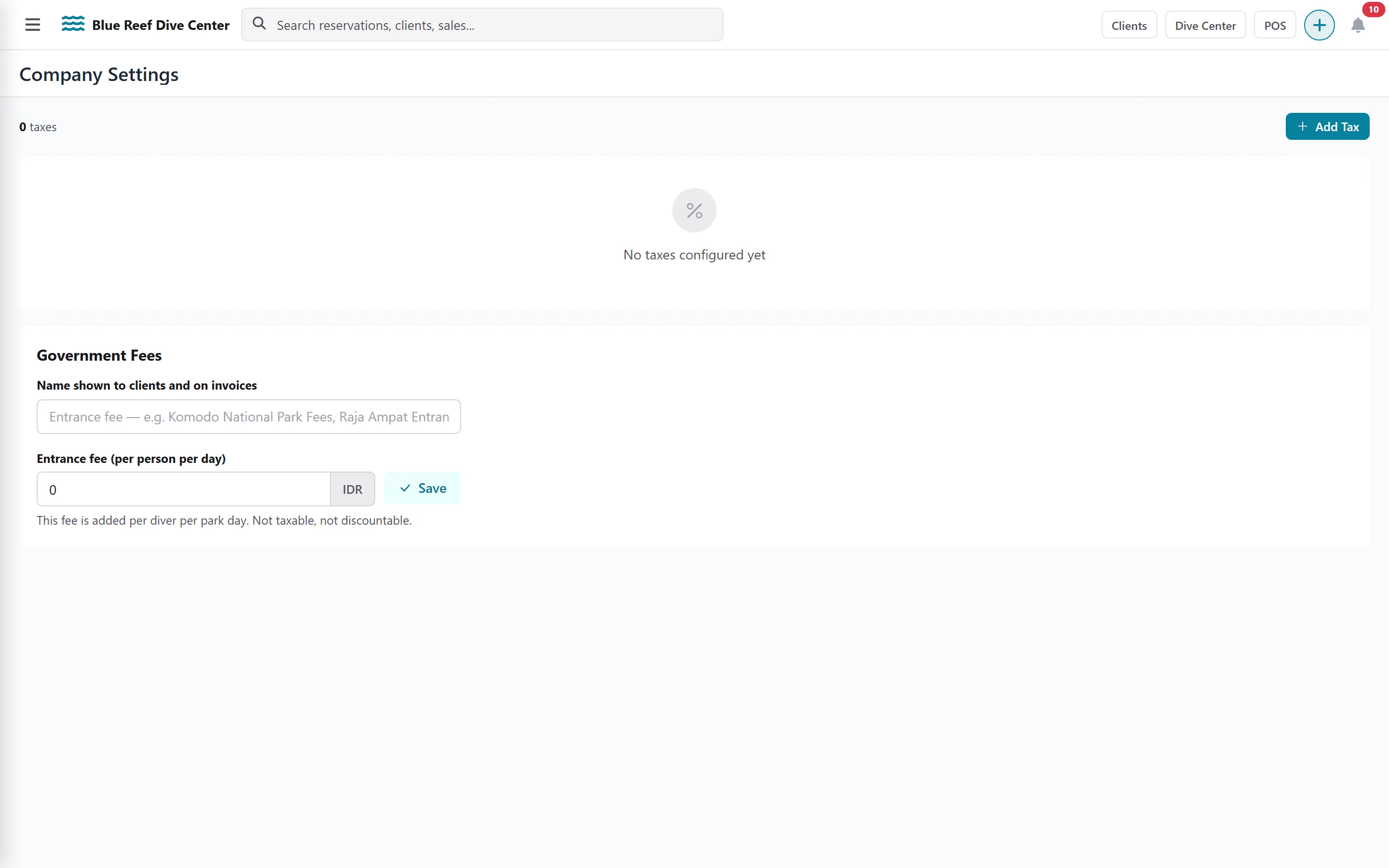
Mandatory fees per diving day (e.g. marine park fees)
Section titled “Mandatory fees per diving day (e.g. marine park fees)”Some destinations charge every diver an entrance fee for each day in a protected area. DiveHQ adds it automatically:
-
On the Taxes tab, find the Government Fees card.
-
Enter the Name shown to clients and on invoices (for example “Marine park fee”) and the amount per person per day, then Save.
-
On each activity, set Park Fee Days: how many days of that activity require the fee (0 = no fee). See Activities.
Deposits for online bookings
Section titled “Deposits for online bookings”-
Click the Deposit Rules tab.
-
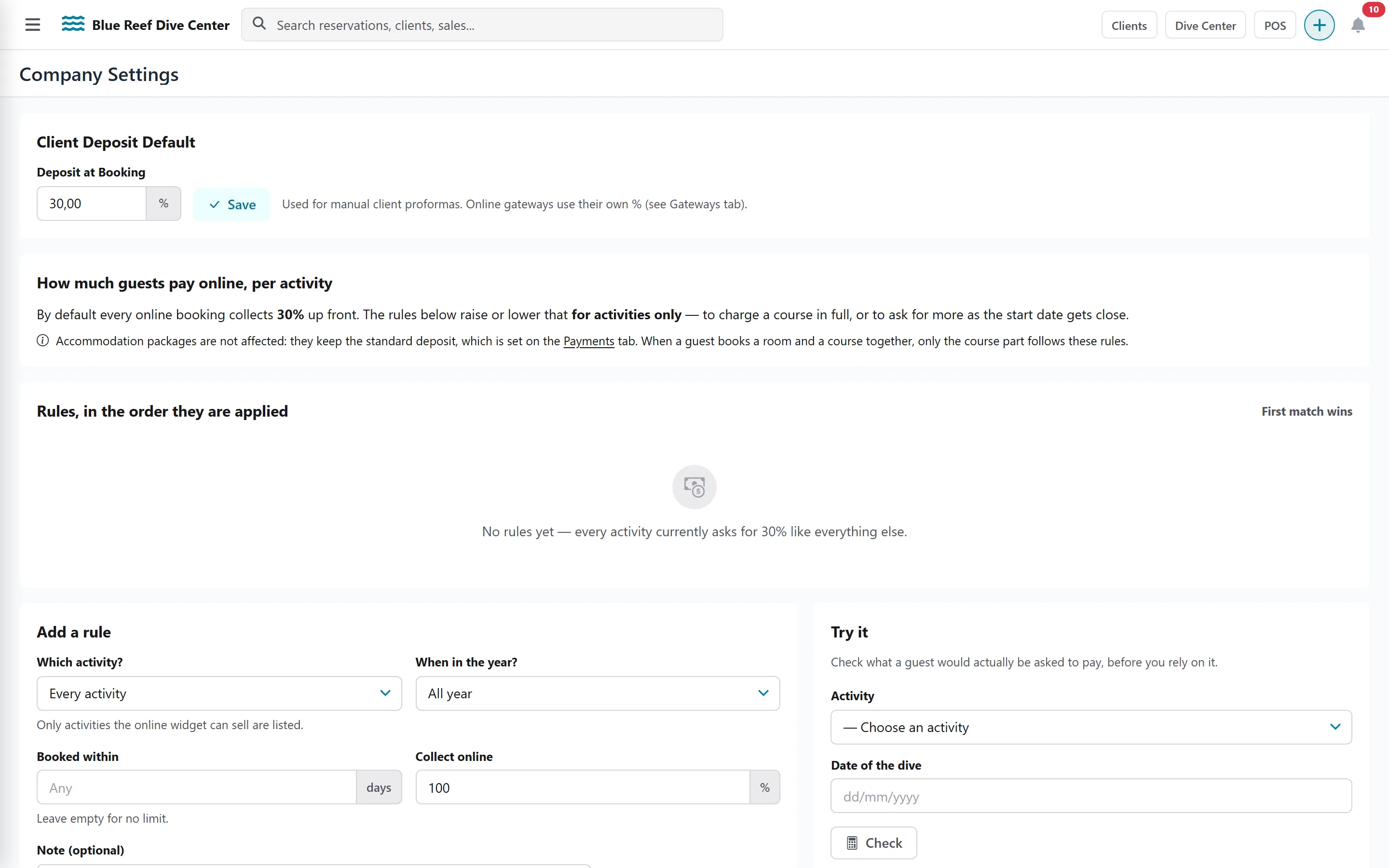
In Client Deposit Default, set the Deposit at Booking percentage. It is used for proformas you create by hand; online payment gateways have their own percentage (see Payments).
-
To ask a different deposit for some activities, seasons or last-minute bookings, click Add a rule and choose:
- Which activity? (every activity, or one activity)
- When in the year? (all year, or one season)
- Booked within (number of days before the dive; empty = no limit)
- Collect online %
-
Rules are applied in order: the first rule that matches wins. Use Try it — pick an activity and a dive date, click Check — to see which percentage a guest would pay.
-
Under What the guest reads before paying, write the sentence shown when a balance is left to pay and when the booking is paid in full, then Save wording.