
Departures
A departure is a regular outing: the morning boat at 8:00, the afternoon pool session, the night dive on Tuesdays. It says when something goes out, with which boat or facility, on which days and which activities can use it. The seats come from the boats and facilities you set in Fleet & Facilities.
The page shows your departures in Day, Week or Month view, with filters by type.
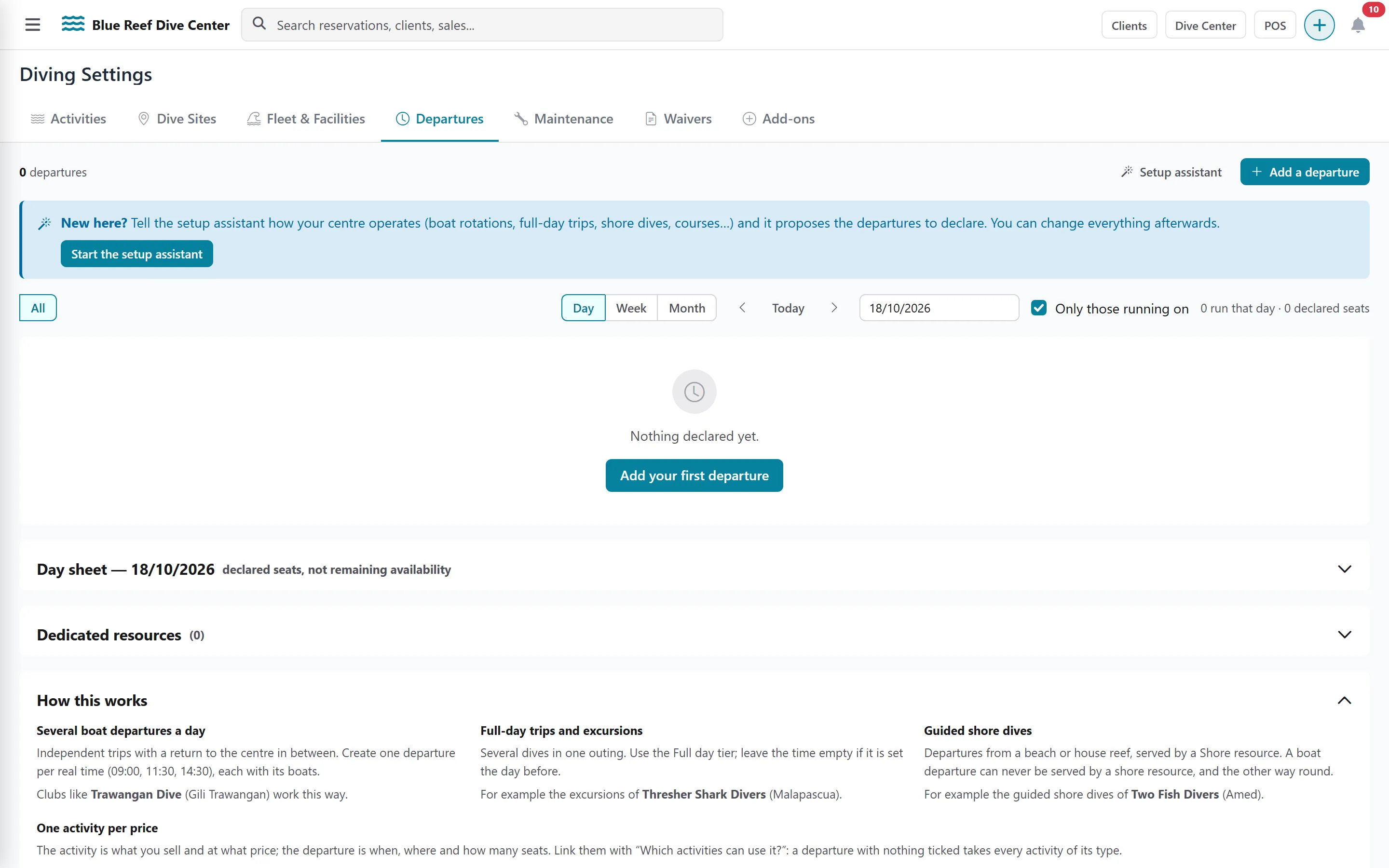
The quickest start: the setup assistant
Section titled “The quickest start: the setup assistant”-
Click Setup assistant.
-
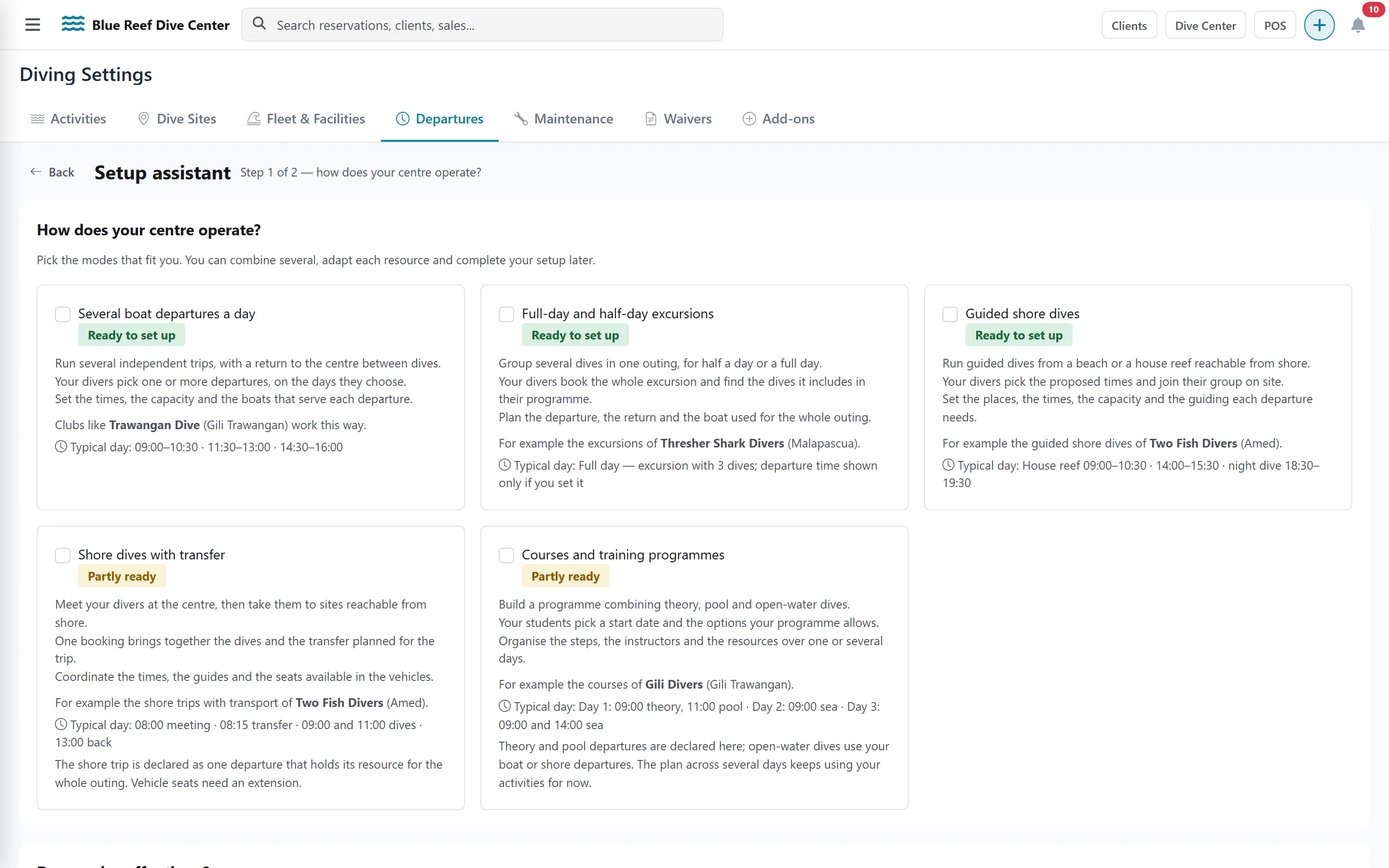
Under How does your centre operate?, pick the mode closest to yours, then tick any extras under Do you also offer these?.
-
Click Propose departures. DiveHQ suggests a list of departures (name, type, time, duration, resources). Untick the ones you don’t want and create the rest.
A departure that already exists (same type, part of the day and time) is never created twice, so you can run the assistant again safely.
Add a departure by hand
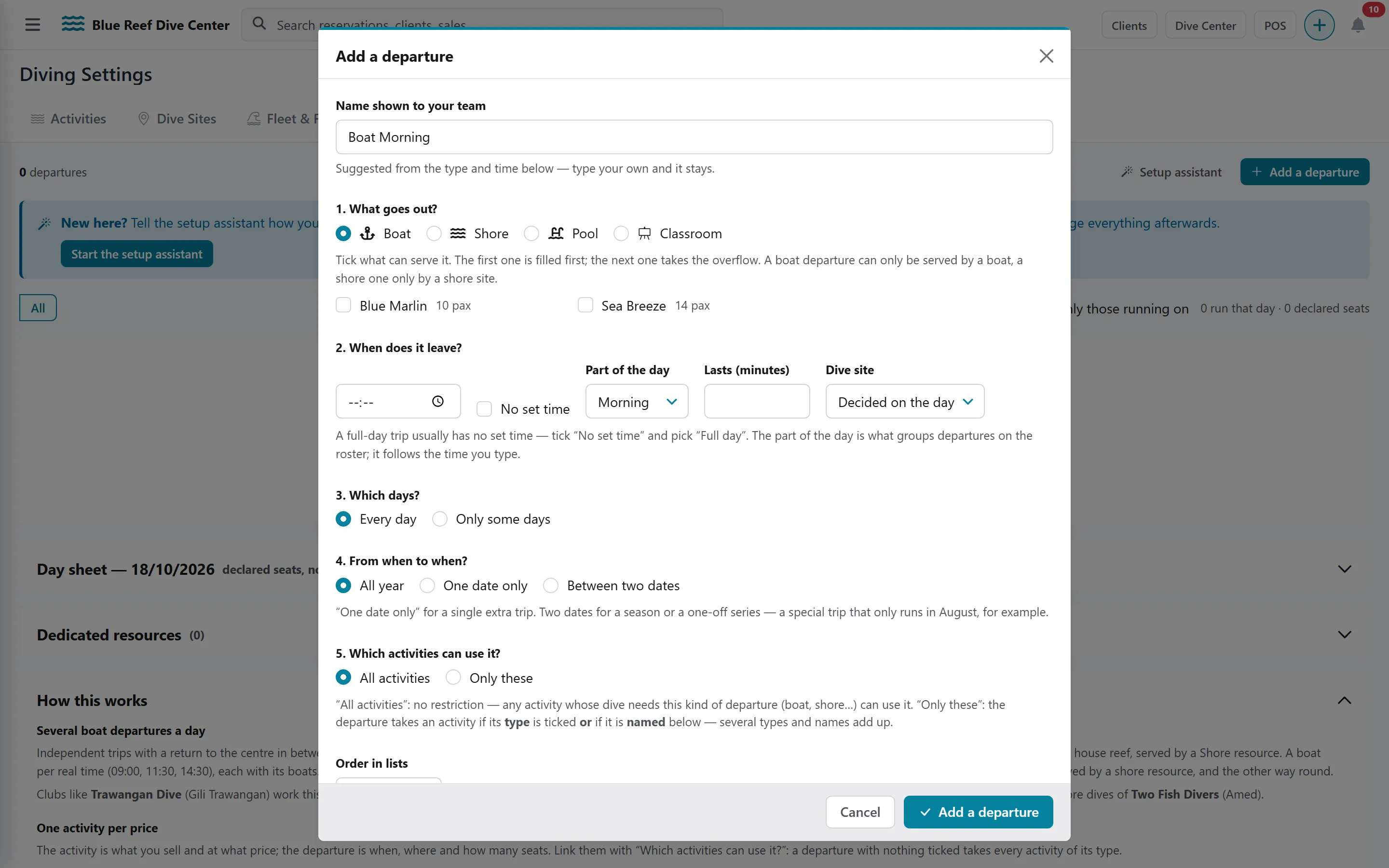
Section titled “Add a departure by hand”Click Add a departure. The window has a name and five numbered sections.
-
Name shown to your team — suggested from the type and time; type your own and it stays.
-
1. What goes out? — choose Boat, Shore, Pool or Classroom, then tick the resources that serve it and give each an order number. The first one fills first; the next takes the overflow. A boat departure can only use boats, a shore departure only shore points.
-
2. When does it leave? — a time (or No set time), the Part of the day (Full day, Morning, Afternoon, Evening, Night), how long it Lasts (minutes), and the Dive site (Decided on the day, or a fixed site).
-
3. Which days? — Every day, or Only some days with the days of the week.
-
4. From when to when? — All year, One date only, or Between two dates (for a season).
-
5. Which activities can use it? — All activities that need this kind of departure, or Only these: pick activity types and/or named activities.
-
Set Order in lists, keep Available on, choose Runs by default (see below) and save.
Open or cancel a departure on a given day
Section titled “Open or cancel a departure on a given day”Each departure has a Runs / Off switch per day. Switching a day Off asks for confirmation, and is refused while divers are booked on that departure — move them first.
Reserve a boat or facility for some offers
Section titled “Reserve a boat or facility for some offers”Open Dedicated resources to reserve a resource for a period (for example a boat kept for a course week): choose the Resource, From and To dates, an optional note, and the activity types or activities allowed on it.
Close a whole day for online booking
Section titled “Close a whole day for online booking”When you cannot take more online bookings on a date (for example, park entrance tickets are sold out):
-
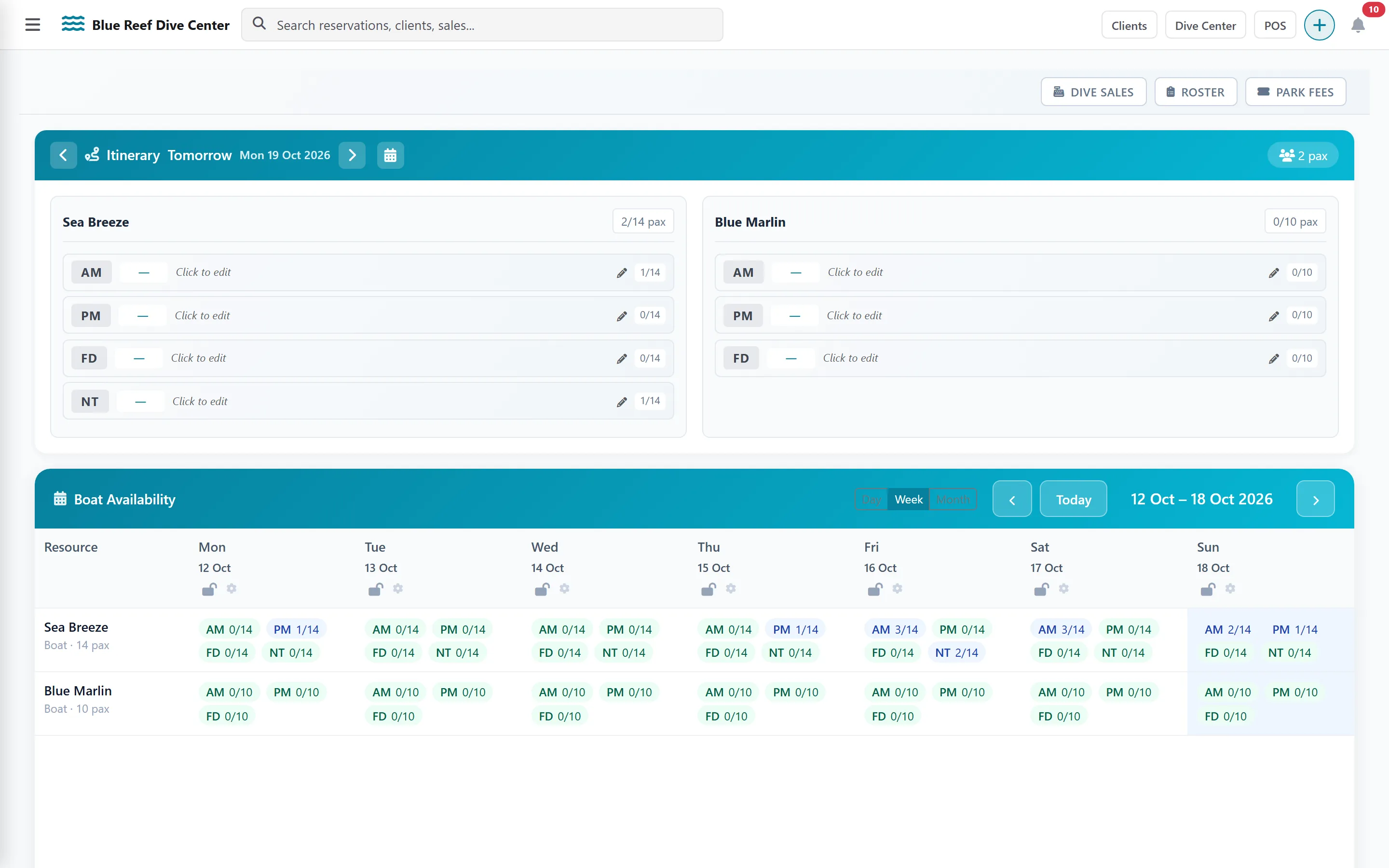
Open Dive Center in the top bar, in month view.
-
Click the lock button on the day (Close this day for online booking) and give a reason. The reason is kept for your team; guests never see it.
-
To reopen, click the orange pill on that day and confirm.
Guests trying to book that date are told diving is closed and asked to choose other dates. Bookings already taken stay on the board.