
Booking widget on your website
Choose what is sold online
Section titled “Choose what is sold online”-
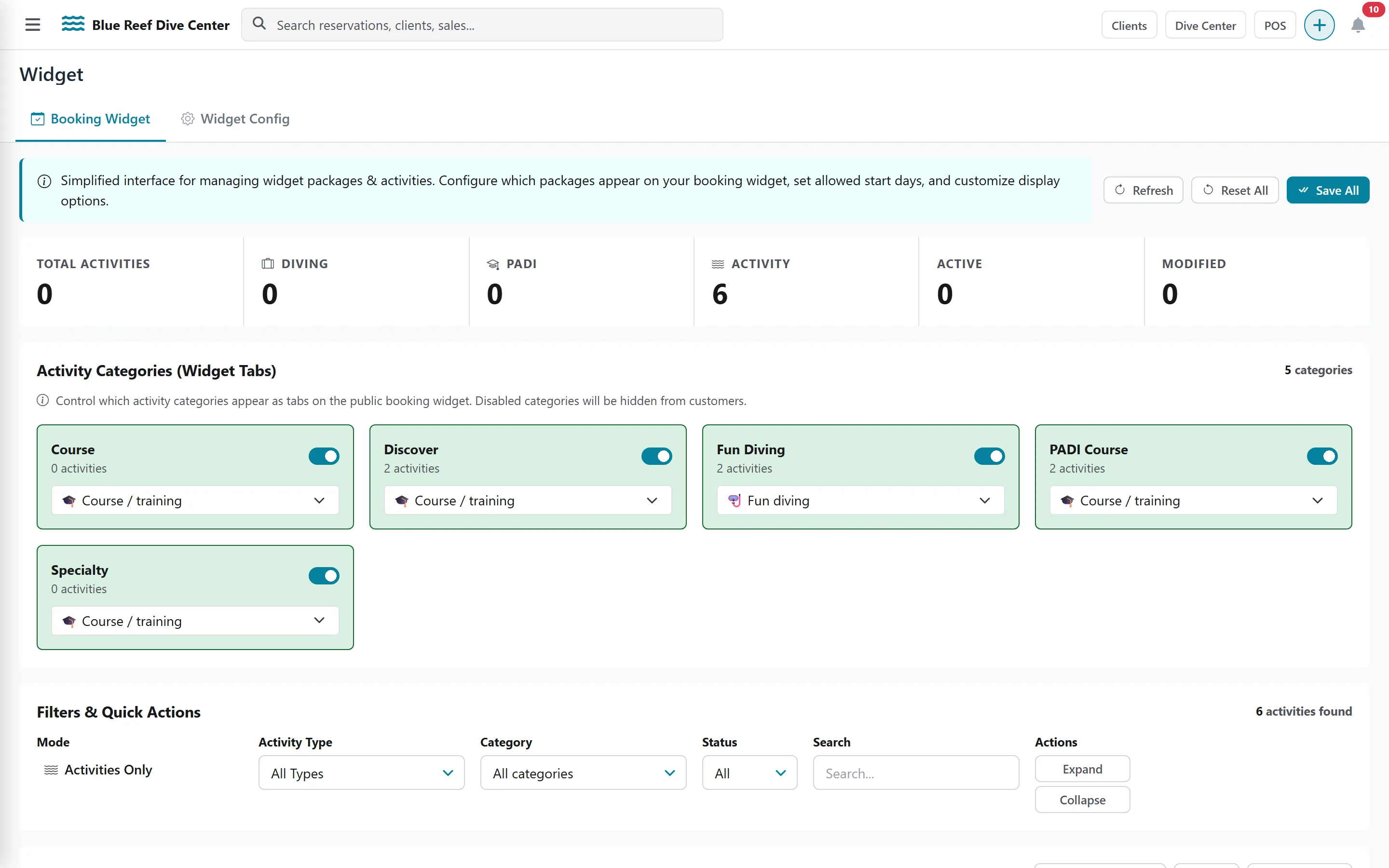
Under Settings, open Widget. The Booking Widget tab opens.
-
In Activity Categories (Widget Tabs), show or hide each category and place it under Fun diving or Course / training.
-
In the activity list, set the Status and Allowed Days of each activity (buttons All Days / Weekdays Only help).
-
Open a row to set its Widget Display Name, image and Booking window (Full open, or Up to N days ahead). The row also lists the departures that take this activity.
-
Click Save & Close, then Save All at the top.
Put the widget on your website
Section titled “Put the widget on your website”-
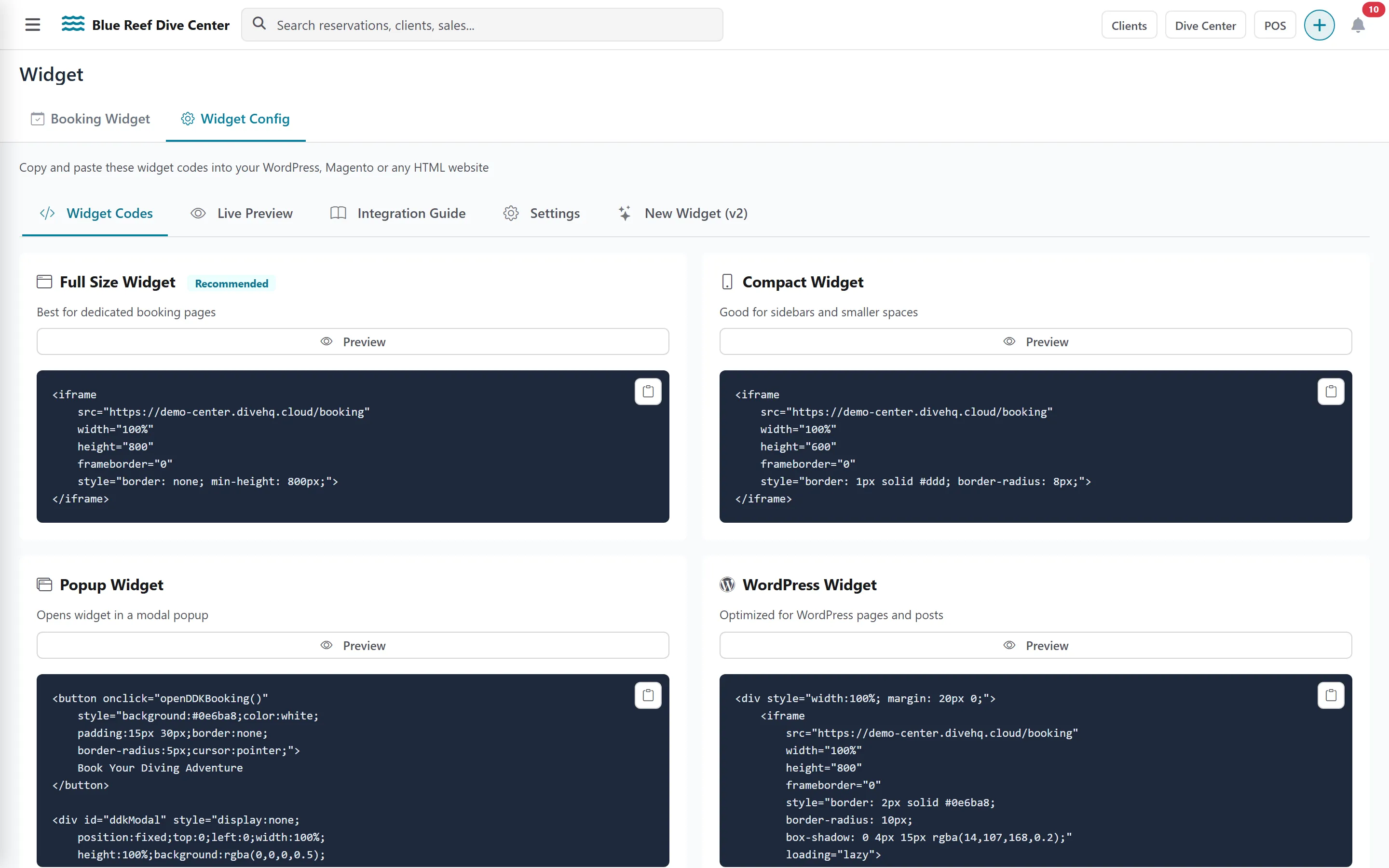
Click the Widget Config tab.
-
Open New Widget (v2). Pick a Theme, write a short Widget tagline, and optionally a Widget notice.
-
Click Copy embed code and paste it into your website. On WordPress, use a Custom HTML block.
-
Check the result in Live Preview.
What the guest pays online, and the emails they receive
Section titled “What the guest pays online, and the emails they receive”- The guest pays a deposit through your Default Payment Gateway (see Payments & online gateways). The deposit percentage is the gateway’s Deposit at Booking, adjusted per activity by your Deposit Rules; the gateway’s processing fee is added to it.
- An unpaid booking is cancelled automatically when its payment link expires.
- When the deposit is paid, the booking is confirmed. The guest’s confirmation email or WhatsApp is sent by your Automation rules: create a rule When reservation is confirmed and one When diving sale is confirmed, otherwise the guest receives nothing from you. See Emails & WhatsApp.
- After paying, the guest lands on the Thank-you page after payment set in Company settings.
If you also use Dive Resort
Section titled “If you also use Dive Resort”- On the Booking Widget tab, a switch chooses between Packages and Activities Only. Packages lets guests book stays; it exists only with the Dive Resort plan.
- On Widget Config › New Widget (v2), Same-day arrivals lets you sell stays starting today until a given time. Click Turn off to stop same-day arrivals.