
Payments & online gateways
- Gateways: admin only
Where the money lands: accounts
Section titled “Where the money lands: accounts”-
Open Settings › Company and click the Payments tab.
-
Under Accounts — where the money lands, click Add Account for each bank account and cash till: Account name, Currency, Type (Bank account or Cash till), and for a bank the Bank name, Account holder, Account number / IBAN and SWIFT / BIC.
-
Tick Show this account on client documents for the accounts guests may pay into.
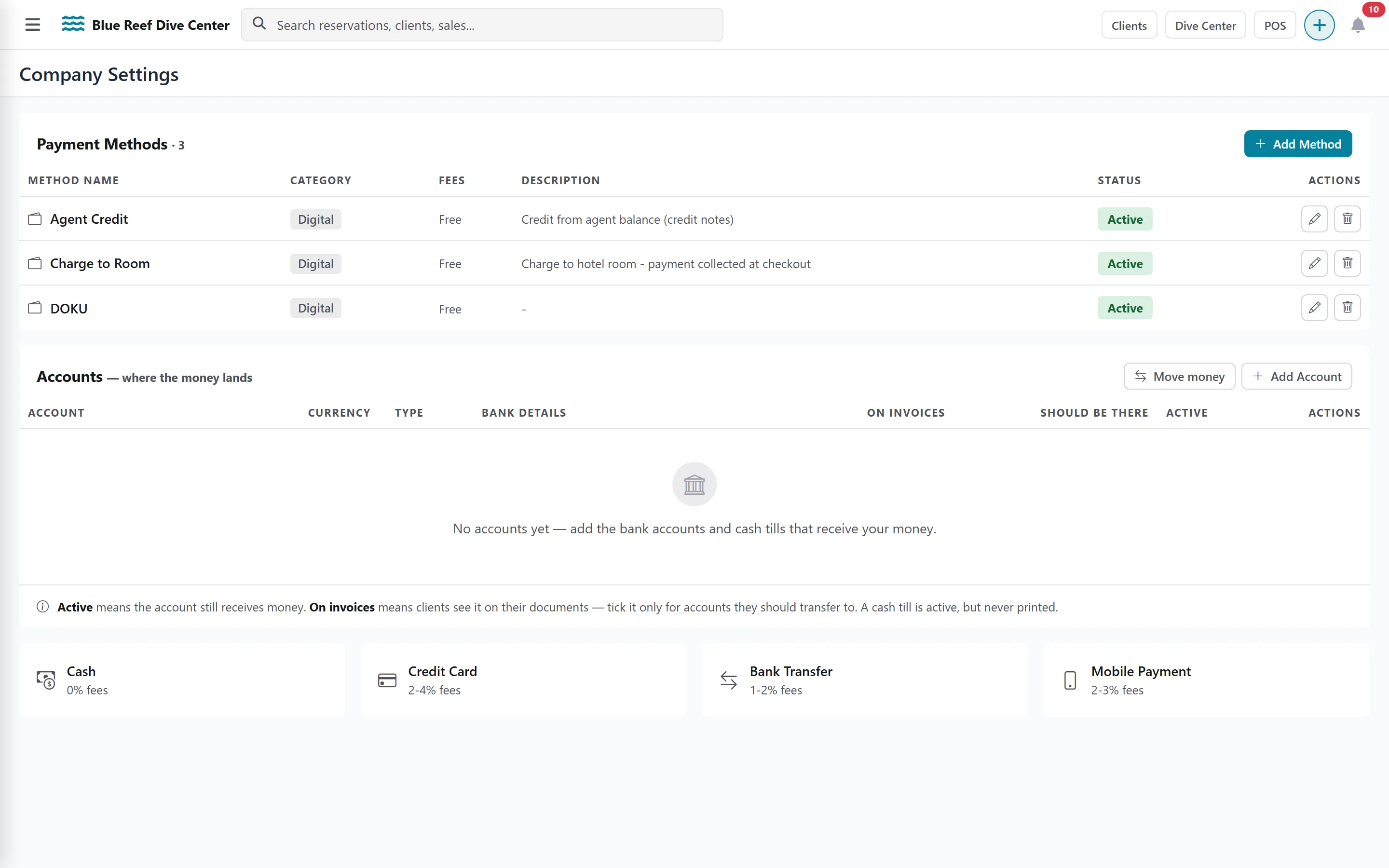
How guests pay: payment methods
Section titled “How guests pay: payment methods”-
In Payment Methods, click Add Method (or start from a Quick Template).
-
Give it a Method Name, optional Processing Fees (%), and choose the account the money lands on. If it can land on several accounts, tick them under Can also land on: whoever records a payment will be asked which one.
-
Tick Physical cash (reconcile) for cash, so it appears in cash counts.
Online payment gateways
Section titled “Online payment gateways”The Gateways tab is reserved to administrators.
-
Click the Gateways tab.
-
Choose the Default Payment Gateway: Xendit, Paylabs, DOKU, iPay88, PayPal or Stripe.
-
Enter the keys your gateway gave you. For Xendit, start in SANDBOX mode to test, then switch to PRODUCTION, and copy the Webhook URL shown into your Xendit dashboard.
-
Set the gateway policy: Deposit at Booking (%), Payment Expiry (minutes) and Processing Fee %.