
Trips
A trip is one departure: a boat, an itinerary and dates. Guests book cabins on trips.
The trip list shows each departure with its dates, cabins available, status and bookings. Past trips are hidden by default (filter Upcoming only).
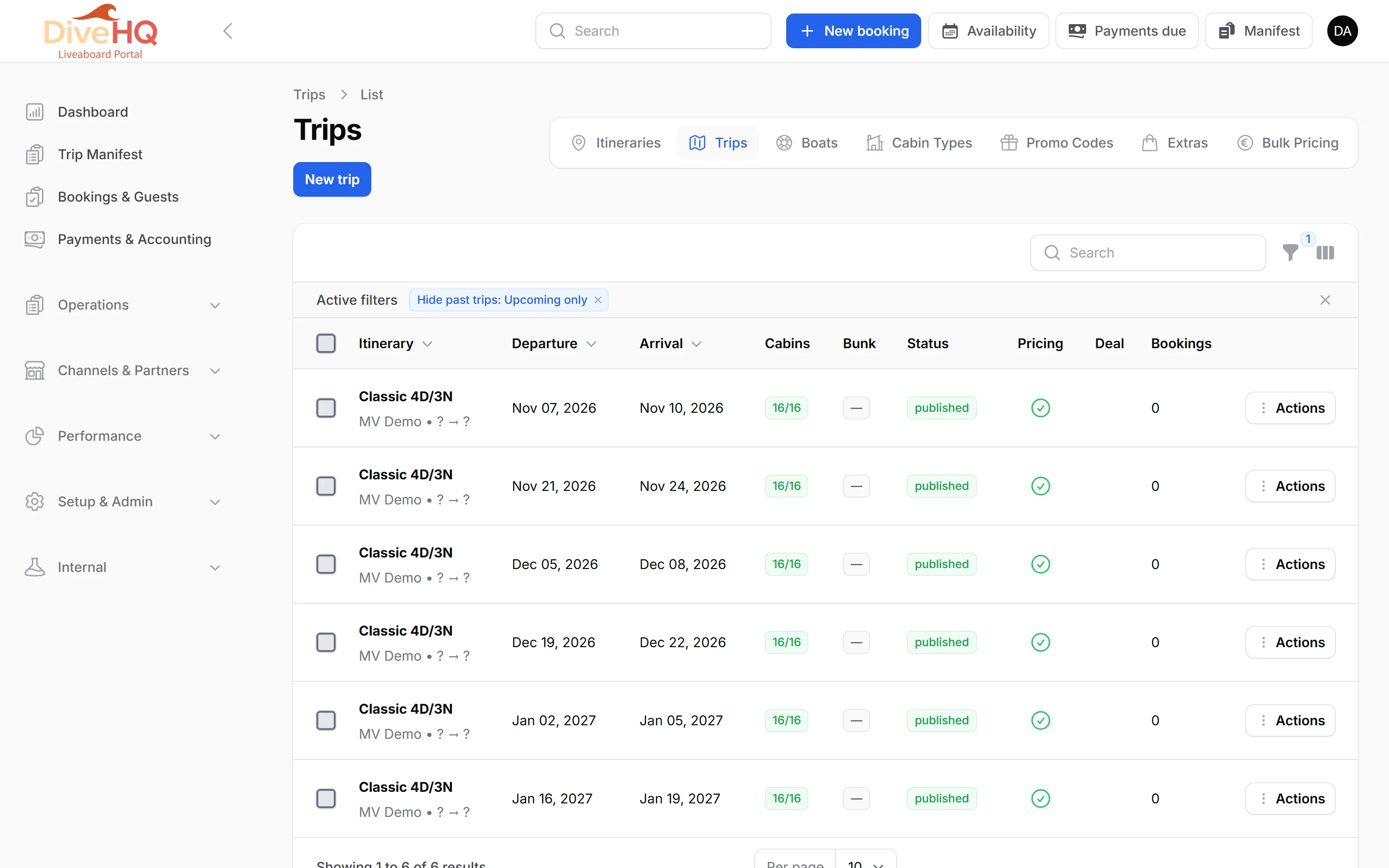
Create trips
Section titled “Create trips”-
Click New trip.
-
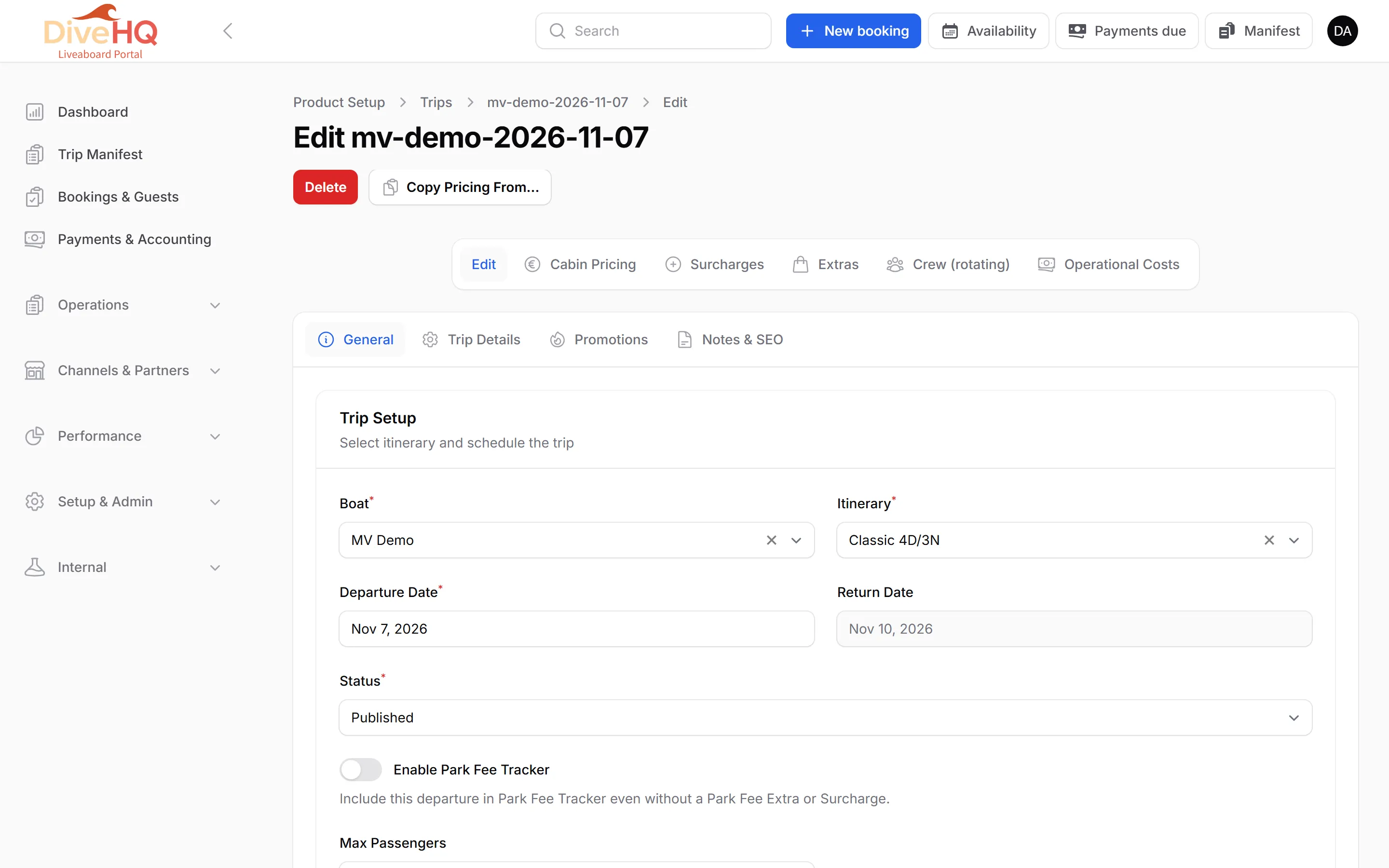
General tab, Trip Setup:
- Boat and Itinerary (required). Choosing the itinerary fills the return date, diving days and total dives.
- Departure Date. The Return Date is calculated and locked.
- To create several departures at once, switch on Bulk Creation Mode, then enter dates or click them on the calendar. A preview lists the trips that will be created.
- Status (see below) and Enable Park Fee Tracker if this departure needs park-fee follow-up.
-
Trip Details tab: check-in and check-out times, meeting point, the Minimum Cabins and Minimum Passengers needed to confirm the trip, and a port override if this departure leaves from another port than the itinerary.
-
Promotions and Notes & SEO tabs: see below.
-
Save.
Trip status
Section titled “Trip status”| Status | Effect |
|---|---|
| Published | Listed on your website and booking widget |
| Hidden | Not on the public site, but you can still book it from New booking, where it shows [not public]. Existing bookings are not affected |
| Draft, Full, Cancelled | Not on the public site |
From the list, Hide and Show (Publish) switch a trip in one click, also as bulk actions on several trips.
The tabs of a trip
Section titled “The tabs of a trip”When you edit a trip, tabs under the form manage what is specific to this departure.
Cabin Pricing
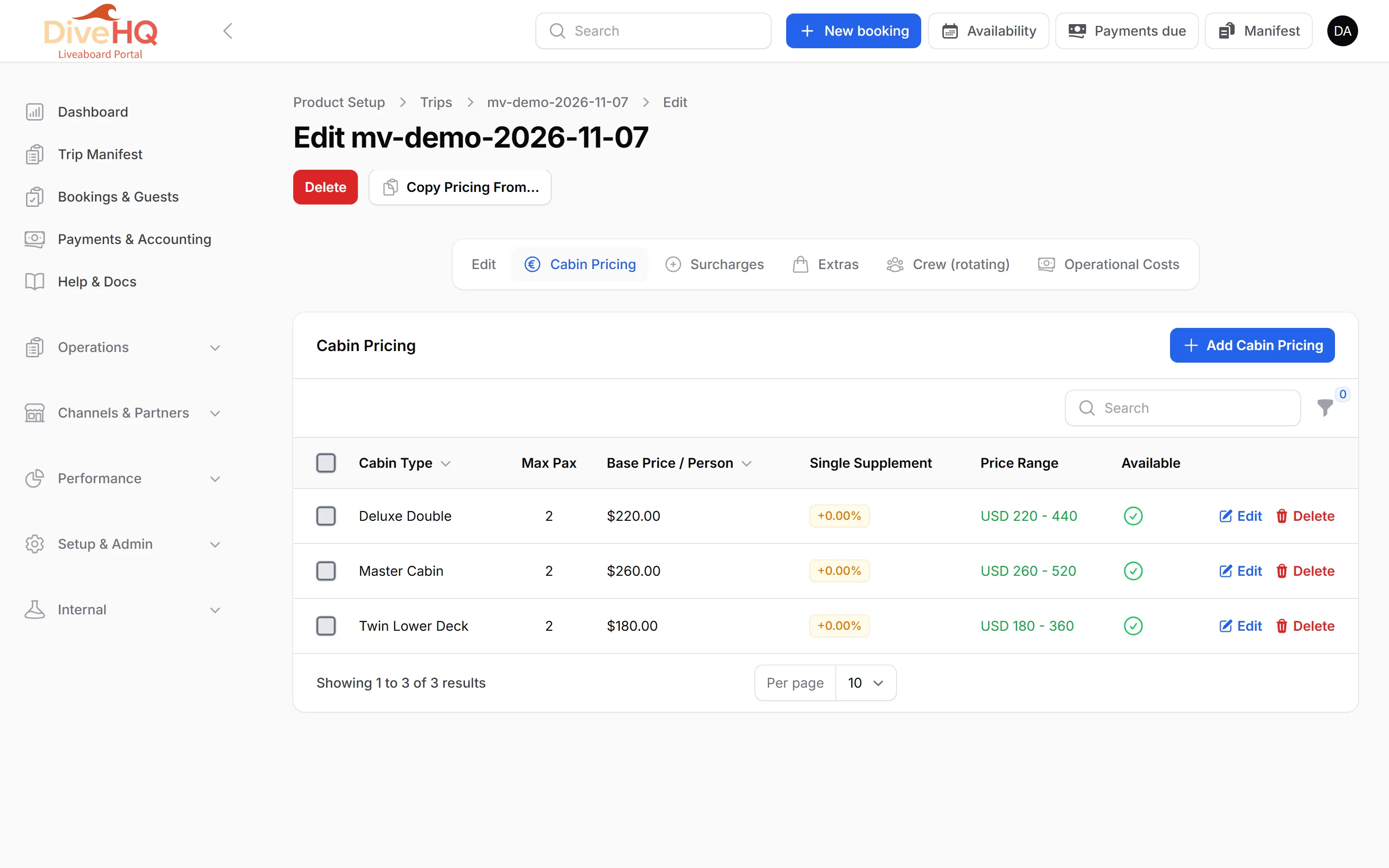
Section titled “Cabin Pricing”One line per cabin type, created automatically from the boat’s default prices. Edit a line to change, for this trip only:
- the Base Price per Person — the price per person for the whole trip, at full occupancy;
- the Single Supplement, as a percentage or a fixed amount, added per empty bed;
- Available for Booking — switch it off to hide this cabin type on this trip.
To change prices on many trips at once, use Bulk Pricing.
Extras
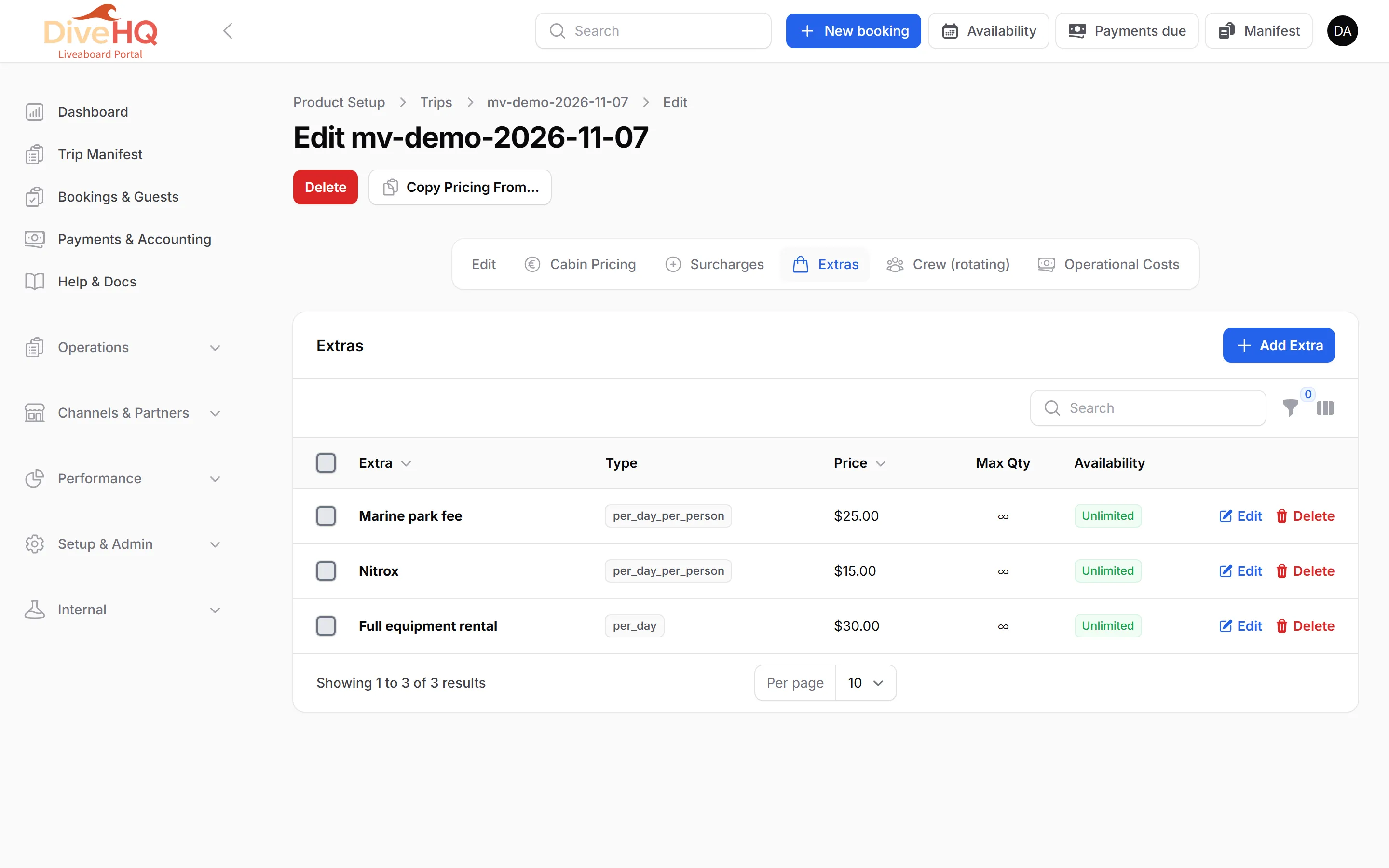
Section titled “Extras”The extras available on this trip, with their price on this trip, a Maximum Quantity Available (empty = unlimited) and Available on or off.
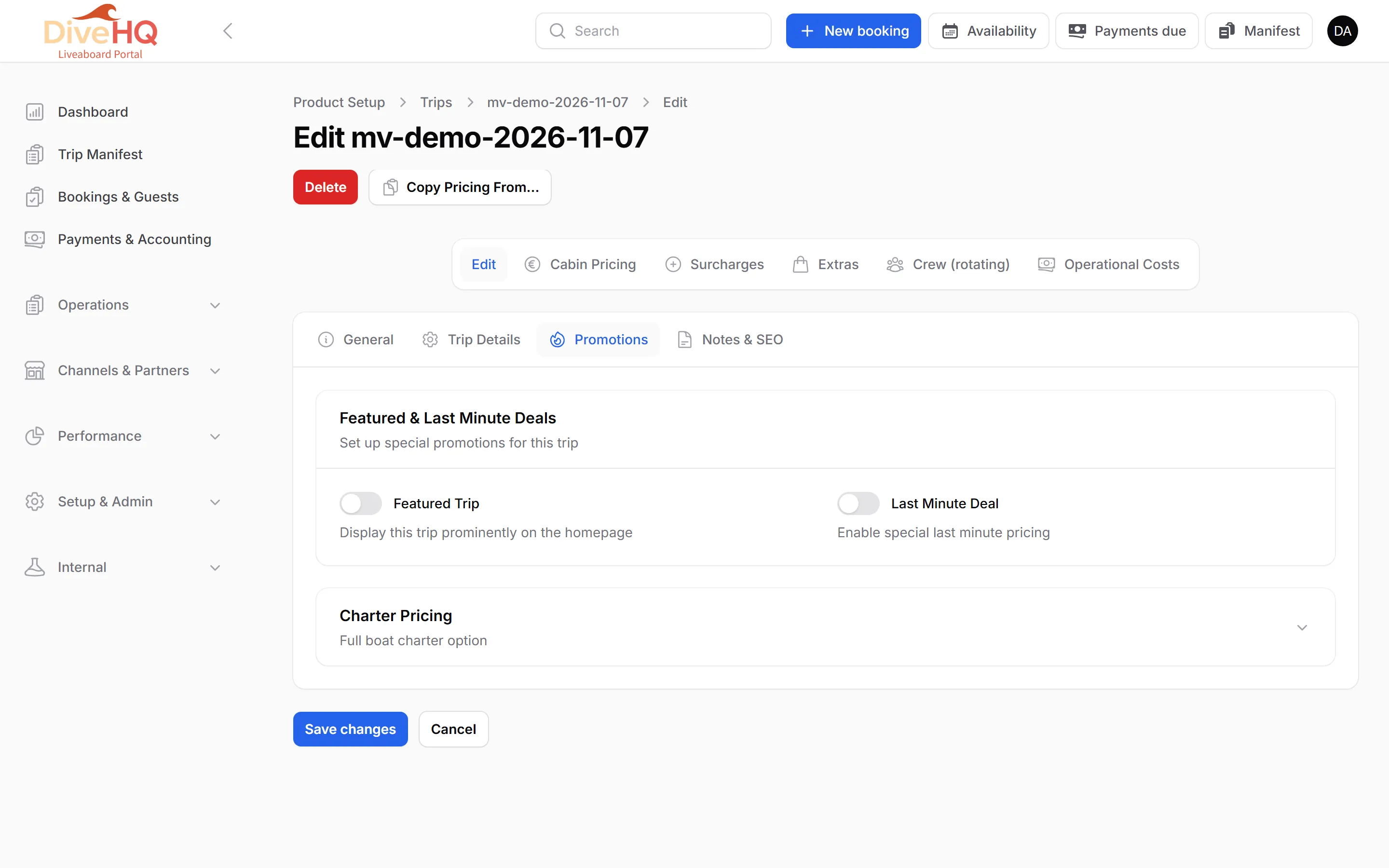
Promotions
Section titled “Promotions”- Featured Trip highlights the departure.
- Last Minute Deal applies a Discount Percentage to all cabin prices — or a Fixed Last Minute Price that overrides it — between Deal Starts and Deal Ends, with an optional label such as “Save 30%”.
- Charter Price: the price to charter the whole boat.
Notes & SEO
Section titled “Notes & SEO”Public Notes appear on the public trip page; Internal Notes are never shown to guests. Meta title, meta description and a sharing image improve how the trip page looks on Google and social networks.
Crew and Operational Costs
Section titled “Crew and Operational Costs”Crew (rotating) lists who works on this departure and in which role. Operational Costs records what the departure cost (fuel, food, harbour fees…); it feeds the profitability reports when the Costs & P&L module is on.
Actions on several trips
Section titled “Actions on several trips”Tick trips in the list to: reassign their itinerary or boat, hide or publish them, change their status, or set a last-minute deal on all of them.